

How to Claim Your ChatGPT Business Listing (Step-by-Step, With Screenshots)

Before you start, have these 3 things in front of you:
- Your driver's license (or another government photo ID). You'll take a photo of it and a quick selfie.
- Your EIN, your business's 9-digit federal tax ID (it looks like 12-3456789).
- Your business street address exactly as it's registered with your state. No PO boxes.
You'll also need a way to prove the business is yours (your business phone, business email, or access to your website's domain settings) and about 20 minutes.
On November 10, 2026, OpenAI opened something new: Businesses in ChatGPT. For the first time, a business owner can claim their business inside ChatGPT, fix the information ChatGPT shows about it, and see how often ChatGPT sends people their way. It all happens in a free dashboard called Business Hub.
OpenAI says 1.2 billion people use ChatGPT every week. A lot of them are asking it the same things they used to ask Google: "Who's a good plumber near me?" "Which pest control company in Sonora has the best reviews?"
Two days after launch, I claimed Sprightly Marketing's own listing and took a screenshot at every step. From the first search to finishing the identity check took about 30 minutes, including one snag with our phone number. This guide walks you through the exact same process. You don't need to be technical. If you can sign in to an account and copy and paste, you can do this.
Why you should claim your listing this week
Your business is probably already there. I didn't create anything for Sprightly. When I searched, ChatGPT already had two listings for us. ChatGPT builds these from information it finds around the web. Until you claim yours, nobody at your business controls what it says.
The first person to claim it becomes the admin. Whoever claims a listing manages it and decides who else gets access. If someone else claims your business first, like a former employee or an old agency, you have to file a dispute and prove who you are to get it back. It's much easier to just be first.
You get the blue check. Once OpenAI verifies you, your profile gets a blue verified badge.
You can finally see the numbers. Business Hub shows how many times ChatGPT mentioned your business, how many people clicked through to your website, and what kinds of questions led them to you.
Approval takes time. OpenAI reviews every claim by hand, and the review time varies. The sooner you start, the sooner you're done.
One honest note: OpenAI says claiming your business does not guarantee ChatGPT will recommend you more often. What it does is put you in charge of the information ChatGPT has about you. Outdated hours, a disconnected phone number or the wrong website cost you calls no matter where they show up.
What you need before you start
- A ChatGPT account. Sign in with the email you want to manage the business long term. Your business email is better than a personal one, because the account that claims the business becomes the admin.
- One way to prove the business is yours. ChatGPT will offer one or more of these: a code sent to your business phone number, a code sent to your business email, a record added to your website's domain settings, or a connection to your Shopify store.
- Your driver's license (or another government photo ID) and a phone or webcam for a quick selfie.
- Your EIN, the 9-digit federal tax ID for your business. It's on your IRS confirmation letter, at the top of your business tax return, and in QuickBooks under Settings, Company, Legal info.
- Your business's street address exactly as it's registered with your state. No PO boxes. If you run the business from home, that's usually your home address.
- About 20 minutes.
You don't need to buy ads or pay for anything to claim your business.
Step-by-step: how to claim your business in ChatGPT
Step 1: Open Business Hub
Sign in to ChatGPT, then go to chatgpt.com/business-hub. You can also open Business Hub from the ChatGPT sidebar.
You'll see a page that says "Reach new customers and grow your business with ChatGPT" and a search box.
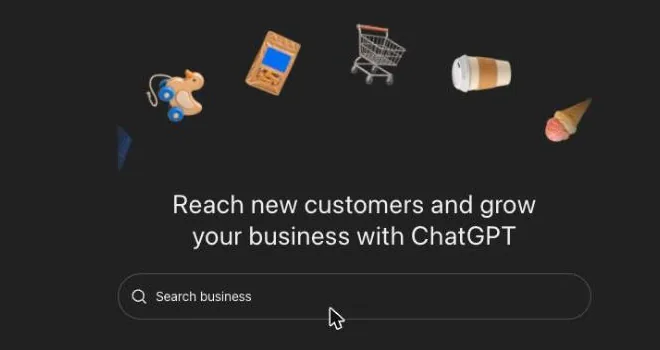
Step 2: Search for your business name
Type your business name into the Search business box. Look for the listing with your address or your website under the name, and click it.
You may see more than one listing for your business. We had two: one tied to our Sonora address and one tied to a page on our website. Start with the one that matches your main location. (We claimed both. See why your business might show up twice below.) Each location is claimed on its own, so a business with three locations claims three listings.
If you can't find your business, you may see an option to Create a new one. Right now that option is for online businesses. Local storefronts and service businesses can only claim a listing that already exists.
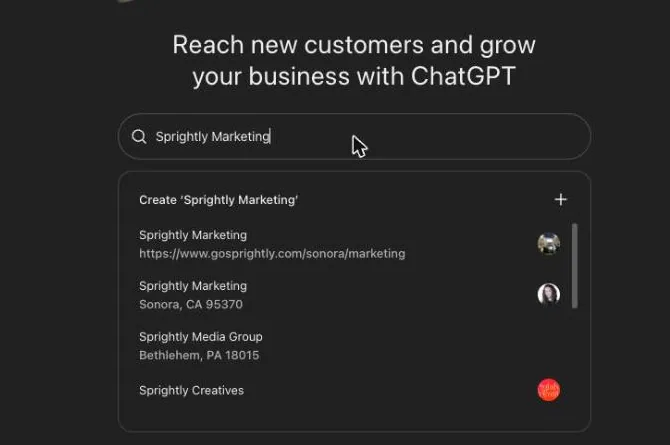
Step 3: Click "Get started"
A window pops up that says Claim [your business] in ChatGPT. It lists what you get: see how your business shows up, keep your information up to date, and (for some businesses) set up an AI agent that answers customer questions. Click Get started.
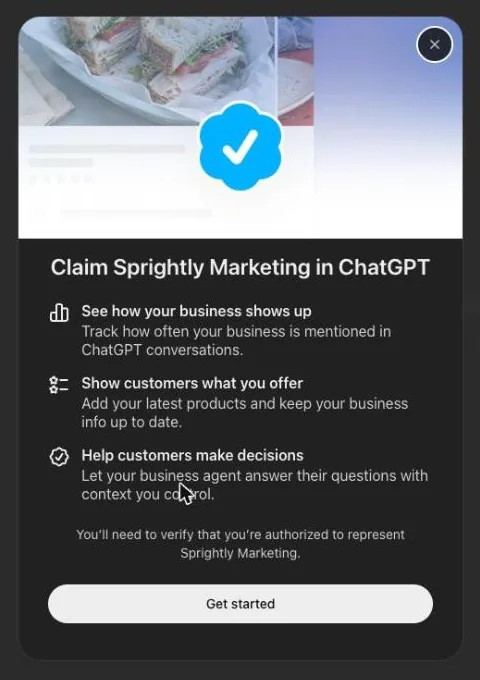
Step 4: Confirm your account and click "Continue"
ChatGPT shows the email address of the account you're signed in with. This account will manage the listing. Make sure it's the right one, then click Continue. Clicking Continue means you accept OpenAI's Businesses in ChatGPT Terms.
On the right side of the screen you'll see a preview of your listing.
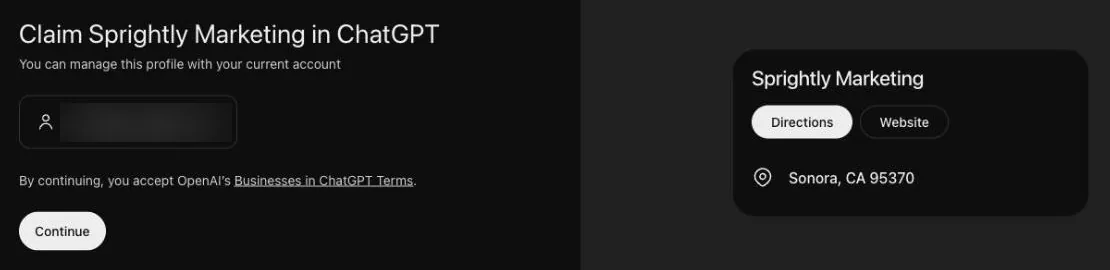
Step 5: Choose how to prove the business is yours
ChatGPT now asks you to verify your claim. You'll only see the options available for your business. Ours offered two: Business phone and Website domain.
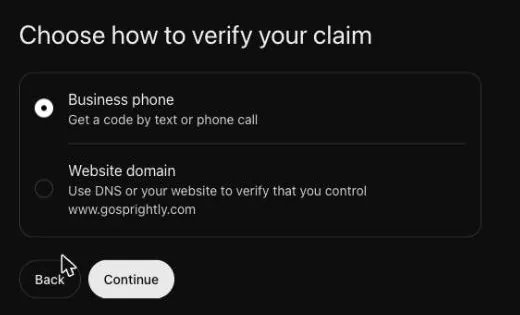
Option A: Business phone (the easiest, when it works)
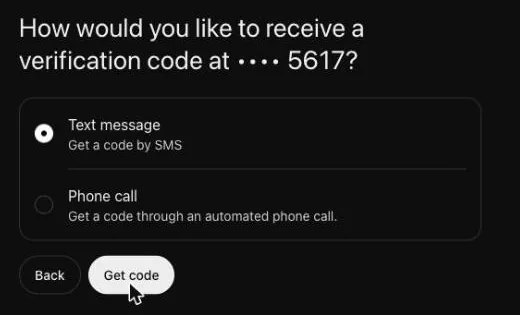
Pick Business phone, then choose Text message or Phone call and click Get code. ChatGPT sends a code to the phone number on your listing. Type it in and you're done with this step.
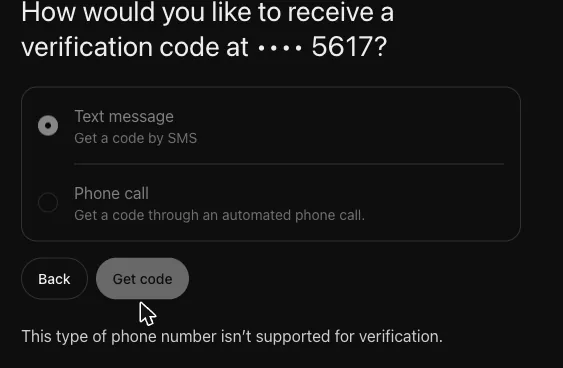
This is where we hit a snag. ChatGPT told us: "This type of phone number isn't supported for verification." That can happen with internet-based phone lines and call-tracking numbers, which a lot of service businesses use. If you see this message, don't worry. Click Back and choose another option.
Option B: Website domain (what we used)
This one sounds technical, but it's really just copy and paste. Pick Website domain and click Continue. ChatGPT shows you three pieces of information:
- Type: TXT
- Name or host: starts with
openai-business-claim - Value or content: a long code that also starts with
openai-business-claim=
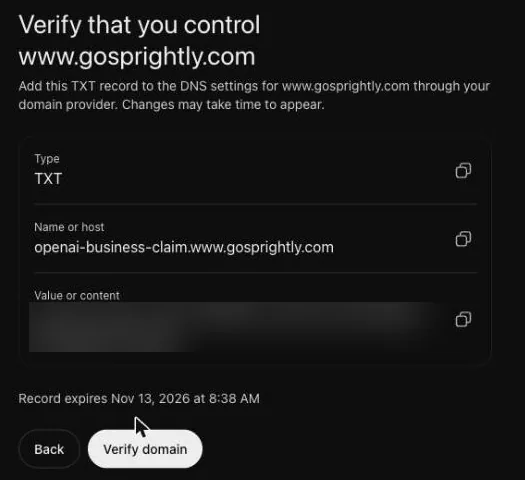
You add these three things to your domain's settings, called DNS. Your DNS lives with the company you pay for your domain name. That's usually GoDaddy, Namecheap, Squarespace, Wix or Cloudflare. Log in there, find the DNS settings for your domain, add a new TXT record, and paste in the name and value exactly as ChatGPT shows them. Use the copy buttons next to each one so you don't make a typo.
If a web designer or marketing agency manages your website, send them those three values and ask them to add the record. It takes them about two minutes.
Two things to know:
- The code expires after about 24 hours. Ours said "Record expires Nov 13, 2026 at 8:38 AM." If yours runs out, start the claim again to get a new one.
- DNS changes can take a little while to show up. Ours worked within a minute. Sometimes it takes longer.
Once the record is added, go back to ChatGPT and click Verify domain.
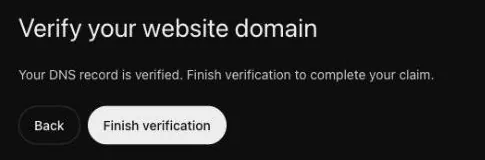
If you come back to Business Hub later and see "Your DNS record is verified. Finish verification to complete your claim," click Finish verification.
Option C: Business email. Pick Business email, click Get code, and type in the code sent to the email address connected to your business.
Option D: Shopify store. If you sell on Shopify, pick Shopify store, click Connect Shopify, and sign in to your store.
Step 6: Wait for OpenAI to review your claim
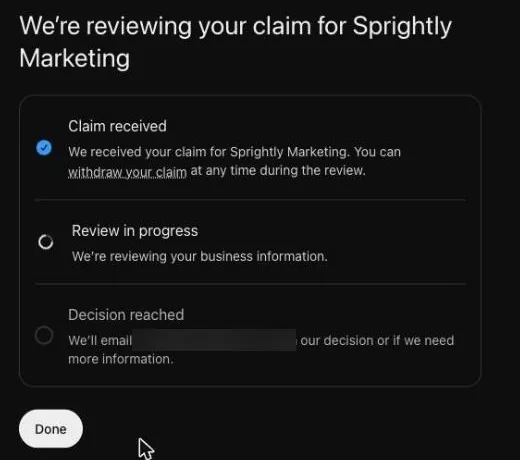
After you verify, you'll see "We're reviewing your claim." The screen shows three stages: Claim received, Review in progress and Decision reached. OpenAI emails you when they decide, or if they need more information. You can withdraw your claim at any time during the review.
In Business Hub, your business now shows up under Business with a Pending tag.
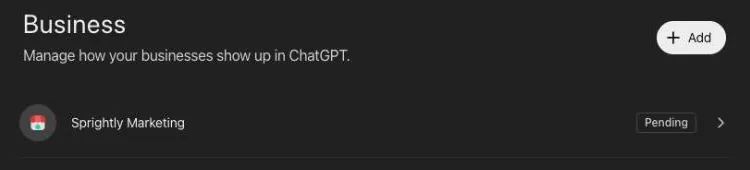
Ours was approved in about 10 minutes. OpenAI says review times vary, so yours may take longer. When it's approved, the Pending tag goes away and clicking your business opens its dashboard.
Step 7: Verify your identity
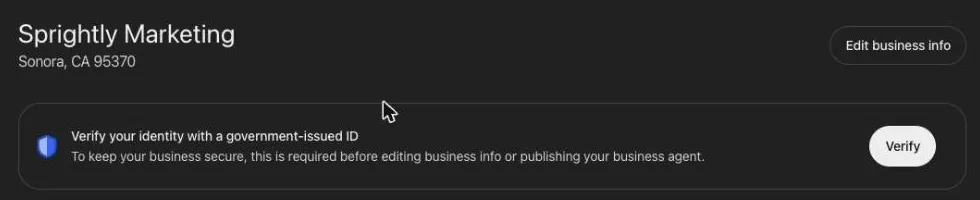
There's one more check after approval. OpenAI uses a company called Persona to confirm you're a real person who's allowed to represent the business. You can't edit your listing, see your insights or get the blue check until this is done.
At the top of your dashboard you'll see "Verify your identity with a government-issued ID." Click Verify, then Start verification.
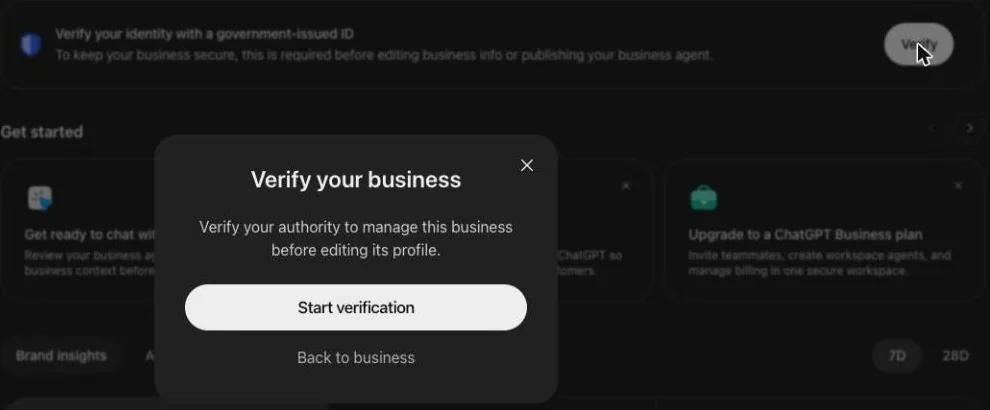
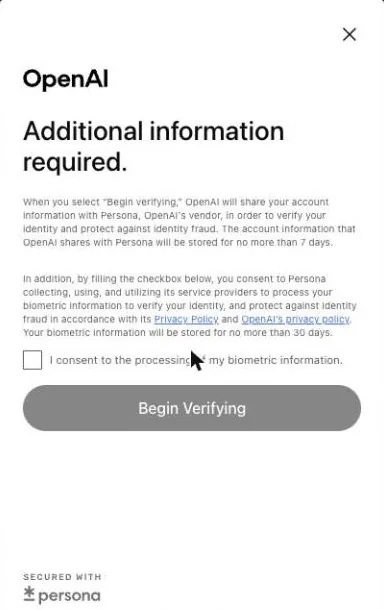
Give your consent. Persona explains that it will use your ID and a photo of your face to confirm who you are, and how long it keeps that information. Check the box that says "I consent to the processing of my biometric information," then click Begin Verifying.
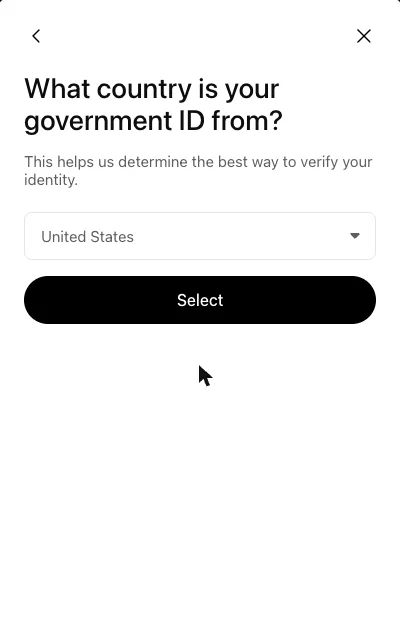
Pick your country (United States for most of you) and click Select.
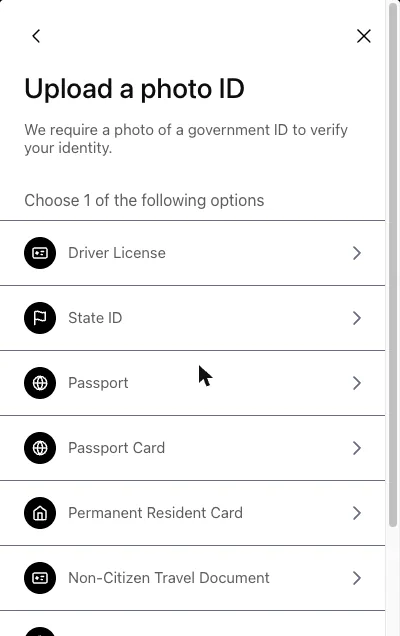
Pick your type of ID. A driver's license is the easiest. You can also use a state ID, passport or passport card.
Take a photo of your ID, front and back. Click the camera button to use your computer's camera, or click Continue on another device to switch to your phone. A phone usually takes a sharper picture. Lay the card flat on a dark table in good light.
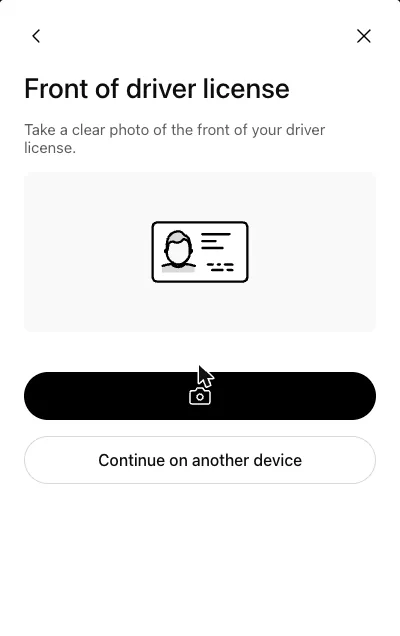
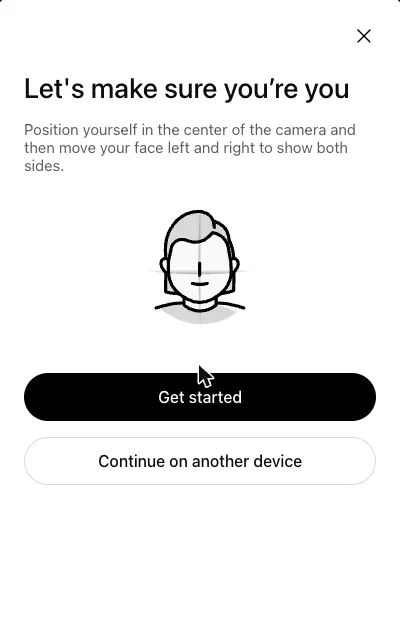
Take a quick selfie. Persona asks you to center your face in the camera, then turn your head left and right. This matches your face to the photo on your ID.
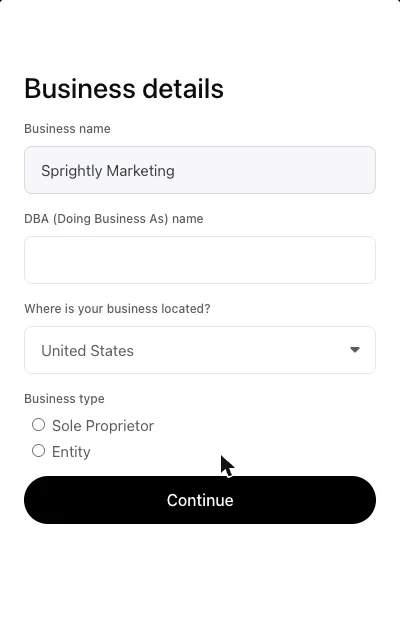
Enter your business details. Your business name is already filled in. Add your DBA ("doing business as") name if you have one. Then choose your business type: pick Entity if you have an LLC or corporation, or Sole Proprietor if you don't.
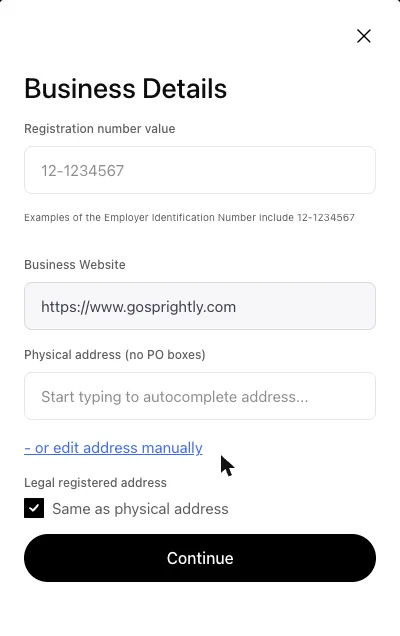
Enter your EIN and address. Type in your EIN (the 9-digit federal tax ID), confirm your website, and enter your business's physical street address. PO boxes aren't allowed. Leave "Same as physical address" checked unless your LLC uses a different address on file with the state, like a registered agent.
Use the exact name, address and EIN on your official business records. A mismatch is the most common reason a check fails.
You're done. Persona shows "Application in review" and says status updates will appear over the next few days. OpenAI emails you with the result.
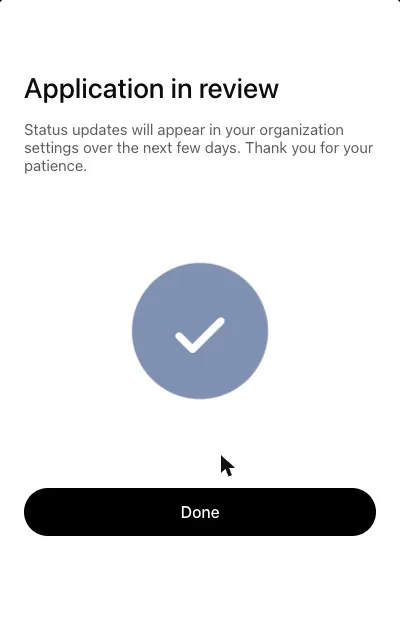
Be careful here if you created a brand-new listing. When OpenAI approves it, the profile publishes automatically, and a published profile can't be deleted or hidden. Check every detail before you submit.
That's where Sprightly is as I write this. I'll add screenshots of the next two steps when our identity check comes back.
Step 8: Fill out your profile
Once Persona approves you, open your business in the Business tab and click Edit business info. You can update:
- Your website
- Your business description
- Your business category
- Your logo
- A cover photo
- Delivery and return policies, if they apply to you
Use the same business name, address and phone number you use on your Google Business Profile and your website. When your information matches everywhere, it's easier for ChatGPT (and Google) to trust it.
OpenAI reviews every change before it goes live, so updates can take some time to show up.
Step 9: Check your insights
Open your business and click Insights. You'll see the last 28 days of:
- Mentions: how many times your business showed up in ChatGPT answers. For a local business, a mention counts when ChatGPT shows your location as a result, even if the person doesn't click on it.
- Website clicks: how many people clicked from ChatGPT to your website.
- Discovery topics: the common themes in the ChatGPT conversations where your business came up.
A blank number doesn't mean zero. It can mean there isn't enough activity yet for OpenAI to report it. OpenAI never shows you anyone's actual conversation.
Step 10 (optional): Give your marketing agency access
The admin who claimed the business can add teammates and give an agency access inside Business Hub. Each person uses their own ChatGPT account. Never forward your personal claim invitation to someone else.
Why your business might show up twice
When we searched for Sprightly Marketing, ChatGPT had two listings for us. They aren't duplicates. They're two different kinds of listing.
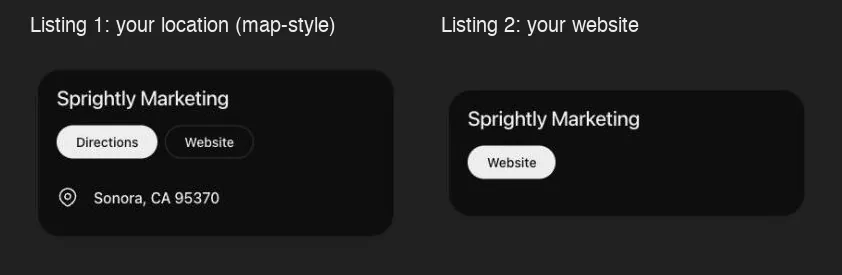
Listing 1 is your location. It shows your address, hours and phone number, with Directions and Call buttons. Think of it as the pin on the map, like your Google Business Profile. It counts a "mention" every time ChatGPT shows your location as a result.
Listing 2 is your website. It shows your name and a Website button. It counts a "mention" every time ChatGPT links to your website in an answer. Ours pointed at one page on our site instead of our homepage.
ChatGPT most likely built one from map-style location data and the other from our website. We didn't create either one.
Can you merge them? Not right now. There's no merge button, and OpenAI's help article says each listing is managed on its own.
Should you claim both? We did, and the second one went through the same way as the first: we added a second website code and it went into review. Claiming both gets you two things:
- You control both. Nobody else can claim the one you skipped.
- You see two sets of numbers. One shows how often ChatGPT sends people to your location. The other shows how often it cites your website.
If you serve customers in one town, the location listing matters most. If you sell online or across the country, the website listing is probably where most of your mentions come from. Claim both anyway. It takes a few extra minutes.
What about the ChatGPT "Business Agent"?
OpenAI also launched Business Agents, an AI assistant that answers customer questions about your business inside ChatGPT. Right now it's only for eligible online stores and online service businesses in the United States. Most local service businesses (plumbers, pest control, HVAC, roofers) can't use it yet. Agents also can't take bookings or payments. They answer questions and send people to your website.
You don't need an agent to claim your listing, and you don't need to buy ads. Those are separate.
Common problems and how to fix them
"This type of phone number isn't supported for verification."
Your phone line probably can't receive ChatGPT's code. Click Back and verify with your website domain or business email instead.
I can't find my business.
Try searching a shorter version of your name, or your name plus your city. Local businesses can only claim a listing that already exists right now.
Somebody already claimed my business.
Open the listing, click the three dots (•••), and choose Dispute ownership. You'll verify your identity with Persona to prove you're authorized to represent the business.
My listing says "Contact support."
The listing is locked. Click Contact support to ask OpenAI for help.
I updated my details, but ChatGPT still shows the old information.
OpenAI reviews changes before they publish, and ChatGPT also pulls from other sources online. Give it time, and make sure your Google Business Profile and website show the same information.
Will claiming my business make ChatGPT recommend me more?
Not directly. OpenAI says claiming doesn't guarantee more visibility, and ads don't change ChatGPT's regular answers. What helps is the same work that helps you rank on Google: accurate information everywhere, a strong website and a steady flow of real reviews.
Want us to do it for you?
This is brand new, and the steps will change as OpenAI adds features. If you'd rather not touch your DNS records, we'll handle that part for you: we'll find your listings, start the claim and add the website record so your business gets verified. The ID check has to be you, since it's your license and your selfie, but we'll walk you through it. Once you're approved, we'll keep your ChatGPT listing in line with your Google Business Profile and website.
Schedule your discovery call today. If it's not a fit, I'll tell you.
Sources: OpenAI, "Introducing Businesses in ChatGPT" (November 10, 2026) and the OpenAI Help Center article "Setting up your business on ChatGPT." Screenshots were taken while claiming Sprightly Marketing's own listing on November 12, 2026. Business Hub is in beta, so screens and steps may change.
Need help with marketing?